How to filter the interlaced video with EnhanceMovie? How to filter the interlaced video with EnhanceMovie?
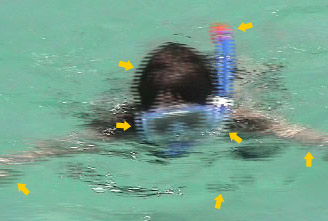
As with blurry videos, you can get an error called "interlacing" when you shoot fast moving objects. You can easily distinguish an interlaced video from a blurry one by horizontal stripes that are present at the entire frame (clearly visible interlaced areas are marked with yellow arrowa):
Why does interlace effect happen?
When recording, many digital camcorders divide each frame into a set of even and odd horizontal raws: first the even raws are recorded, and then the odd raws. So, each frame you see consists of two consecutive pictures. This mixing is called interlacing. Thanks to interlacing, your camera can compress video without using digital compression methods.
But if you record a fast moving object, it can appear at one place in the "even" picture, and at another in the "odd" one. As a result, you get a "striped" picture. The  Deinterlace filter transforms the mixed frames into normal video frames and removes the interlaced horizontal raws. Deinterlace filter transforms the mixed frames into normal video frames and removes the interlaced horizontal raws.
Applying the Deinterlace filter is generally very simple:
Step1. Please download EnhanceMovie and install it; you can know more about it by visiting here: http://www.qweas.com/download/video_dvd/video_editors/enhancemovie.htm
Step2. Open your file with EnhanceMovie by clicking  and selecting your file. and selecting your file.
Step3. Double click the Deinterlace filter to add it to the list of Applied filters:
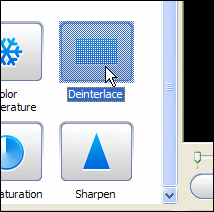
Step4.That's basically it! We've cleared up our video of the interlace artifacts. Switch to the Split view to compare the result with the original video:
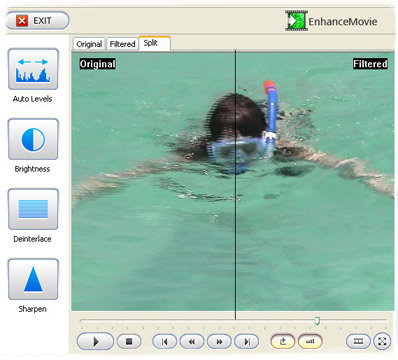
Notice: the video got much sharper, and we didn't do any adjustments to it: we have just combined even and odd raws.
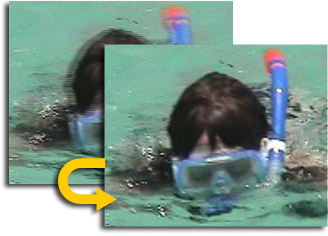
Result:
Related Step by Step Guides and Tutorials:
How to repair the purple video with EnhanceMovie?
How to fix the blurred video with EnhanceMovie?
How to restore too dark video with EnhanceMovie?
How to convert DVD to YouTube Video step by step?
How to convert NRG to ISO with NRG to ISO Converter?
How to backup a Nokia phone,backup mobile files&settings.
How to convert BIN to ISO with BIN to ISO converter.
How to convert Visio files to PDF with document converter.
|
|
|

 RSS Feeds
BBS Forum
RSS Feeds
BBS Forum