How to convert DVD to iPod MP4 video and M4A audio on Mac ? How to convert DVD to iPod MP4 video and M4A audio on Mac ?
The ste-by-step guide will show you how to convert DVD to iPod MP4 video and M4A audio on Mac with Wondershare DVD to iPod Converter for MAC. The detailed steps are as follows:
Step1. Please download Wondershare
DVD to iPod Converter for MAC, install and run
it; you can know more about it by visiting here: http://www.qweas.com/download/video_dvd/video_converters/wondershare_dvd_to_iPod_converter_mac.htm
Step2. Import DVD Movie
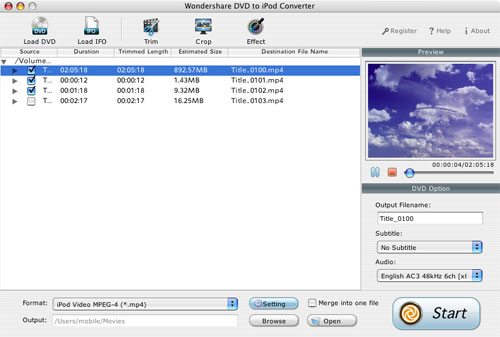
Click the Load DVD button, select the folder of your DVD movie, and click OK. If the movie is on your disc drive, you can just select the drive and click OK.
Or click the Load IFO button, open the folder of your DVD movie, and you will find two folders in it: AUDIO_TS and VIDEO_TS. Open the VIDEO_TS folder, select all the IFO files, and then click OK.
After the movie is imported, you can see all the chapters and titles in it, and then you can check the ones you want to convert. If you want to convert the whole movie, you can just keep all the titles or chapters checked.
Step3. Output Settings
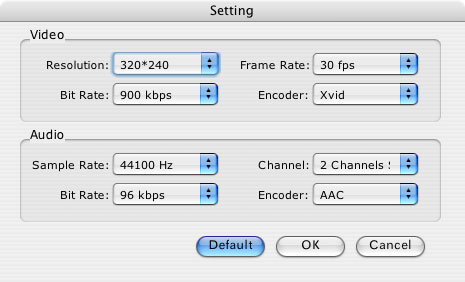
Before conversion, there are a few settings you should make:
- Select the iPod Video format from the Format drop-down list (Besides DVD to iPod video conversion, it can even rip DVD audio to iPod).
- Click the Settings button to set encoding settings including video resolution, frame rate, bit rate and video encoder, audio encoding settings including sample rate, channel, bit rate and audio encoder.
- Name each title/chapter in the Output Filename field, and select the subtitle and audio track for the titles/chapters.
Note: You can check the “Merger into one file” option to join all the selected DVD titles/chapters into one file instead of creating a separated file for each title/chapter.
Step4. Click the Start button to start the conversion. And now you can just go talk a walk and wait till the conversion is completed. After that, you can just transfer the created files to your Apple TV.
Tip 1: Trim Movie
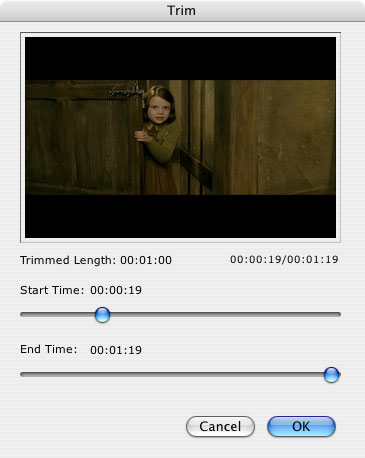
If you just want to convert a clip from your DVD movie, you can click the Trim icon to capture a clip. In the Trim window, you can trim the length of the current title/chapter by either dragging the Start Time and End Time sliders or setting the time parameters in each corresponding field.
Tip 2: Crop Video
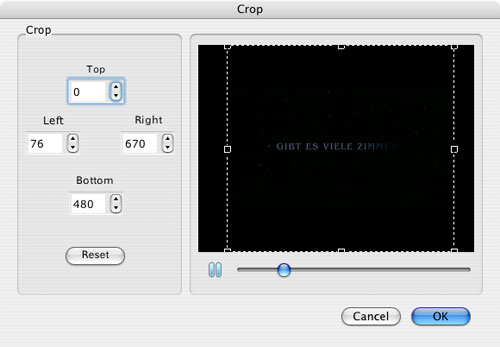
If you DVD video has black sides, you can use this Crop function to remove them. Click the Crop icon to open the Crop window, and set the crop area by dragging the crop frame or setting the four crop parameters (Top, Bottom, Left and Right).
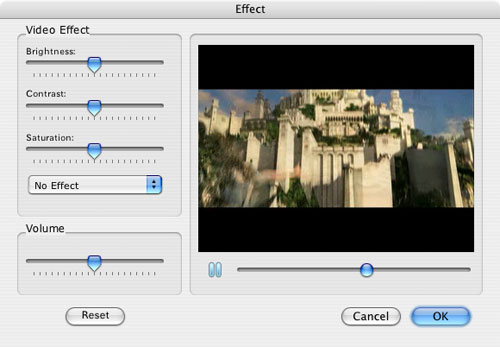
Tip 3: Movie Effect
If you are not content with the original effect, you can click the Effect icon to set the video brightness, contrast, saturation, and audio volume. You can also choose to apply a special effect to your movie video from effects including Gray, Emboss and Negative.
More Mac Software:
 Mac
Software - Audio & video software for Mac, Parallels desktop for Mac, Flash software & graphic software for Mac etc. Mac
Software - Audio & video software for Mac, Parallels desktop for Mac, Flash software & graphic software for Mac etc. |
 Mac
Video Tools - Mac DVD ripper, Mac DVD
to iPhone iPod MP4 video converter, Mac DVD copy, Mac DVD Creator etc. Mac
Video Tools - Mac DVD ripper, Mac DVD
to iPhone iPod MP4 video converter, Mac DVD copy, Mac DVD Creator etc. |
Related Article and Tutorials:
How to convert DVD to iPhone on Mac OS X step by step?
How to convert DVD to Apple TV on Mac OS X?
How to convert DVD to MP4 on Mac step by step?
How to convert DVD to PSP MP4 step by step?
How to download YouTube Video, convert YouTube to PS3 Zune Apple TV iPod 3GP?
How to convert DVD to iPhone Video MP4 step by step?
How to convert video files to iPod format step by step?
How to copy DVD and play on PSP step by step?
How to rip DVD and put DVD on Zune step by step?
|
|
|

 RSS Feeds
BBS Forum
RSS Feeds
BBS Forum