How to convert video files to iPod format? How to convert video files to iPod format?
Step1. Download the fastest video iPod converter software Super Video to iPod Converter from http://www.qweas.com/download/video_dvd/video_converters/super_ipod_video_converter.htm
and install it on your PC.
How to get started?
Step2. Launch Super Video to iPod Converter.
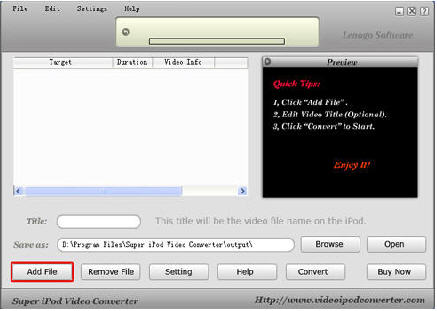
Step3. Click "Add File" button and you'll see a dialog below. If you want to see the full list of all supported video formats, the check the "Advanced Mode (for more video formats)" checkbox. Select the video file you want to convert, and click "Open" button.
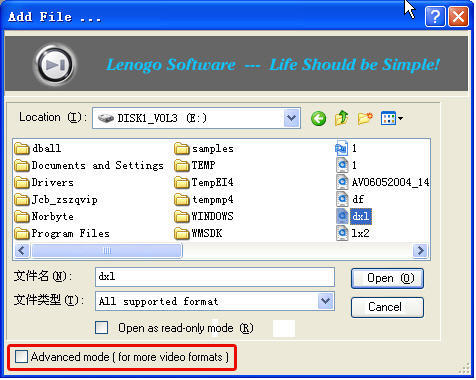
Step4. This dialog shows the contents table of the the movies to be converted.
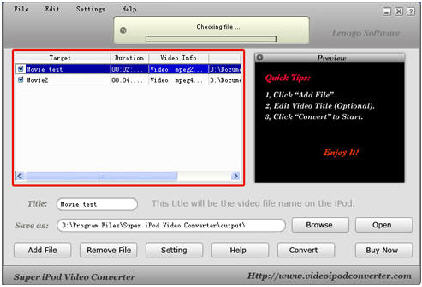
Step5. You may need to change the video title. To do this, put your desired name into the "Title" edit box. This will be the file name in your iPod.
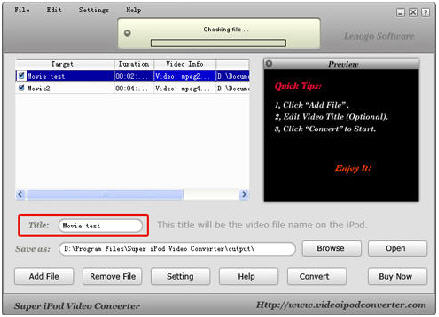
Step6. "Save as" is used to save the converted file to a folder in the hard disc. Click "Browse" button to change the default folder.
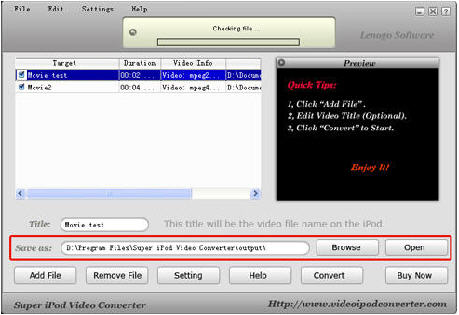
Step7. Now click "Convert" to start converting. The display on the top shows the converting progress. You may also preview the video in the Preview Display on the right.
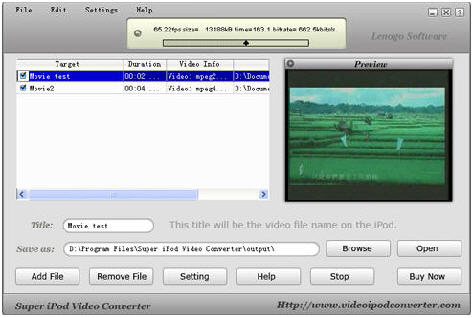
Step8. When the conversion is completed, the folder where you save the converted file automatically opens (you may also open the folder using menu "Edit -> Open Output Folder"). If you will convert another video file, select menu "Edit -> Remove All", and then go to the step 4.
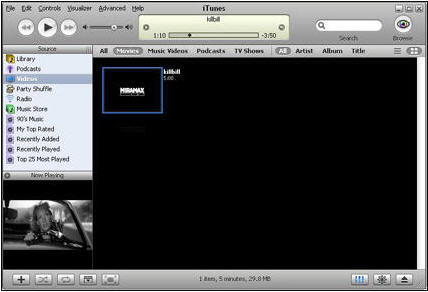
Step9. Launch iTune and choose "File -> Add File to Library". Choose the .mp4 file you have created. Load it on your iPod and start enjoy your movie now!
Related Step by Step Guides and Tutorials:
How to convert DVD to PSP MP4 step by step?
How to convert MSN Music to MP3 step by step?
How to convert Napster protected music to MP3, iPod step by step?
How to convert Rhapsody Music to MP3 step by step?
How to convert and burn VOB AVI to DVD step by step?
How to split MPEG, MPG, SVCD, DVD, VCD with Quick MPEG Splitter step by step?
How to copy DVD and play on PSP step by step?
How to copy DVD movies with dvdSanta step by step?
How to play DVD movie on my PC step by step?
How to rip DVD and put DVD on Zune step by step?
|

 RSS Feeds
BBS Forum
RSS Feeds
BBS Forum