How to rip/convert DVD to iPod? How to rip/convert DVD to iPod?
"Wondershare iPod Video Suite" is an all-in-one iPod video Conversion solution. This Suite includes 2 software -- "Wondershare Video to iPod Converter" and "Wondershare DVD to iPod Ripper". So with this iPod Video Suite, you can convert both DVD media and video file media to iPod video/iPod movie. You can enjoy your favorite DVD and video clip on your iPod as a portable DVD Player.
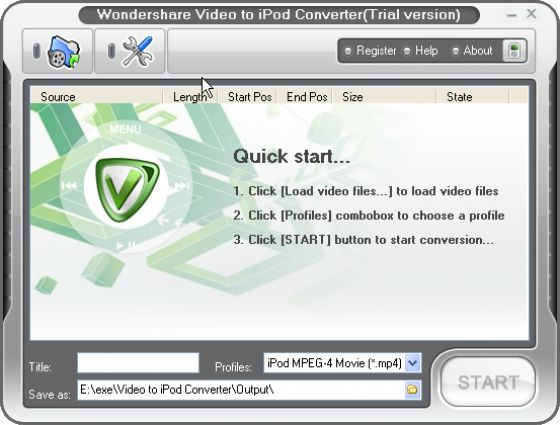

Step1. Download the 'Wondershare iPod Video Suite'. The link is http://www.qweas.com/download/video_dvd/video_converters/wondershare_ipod_video_suite.htm. Install and run it.
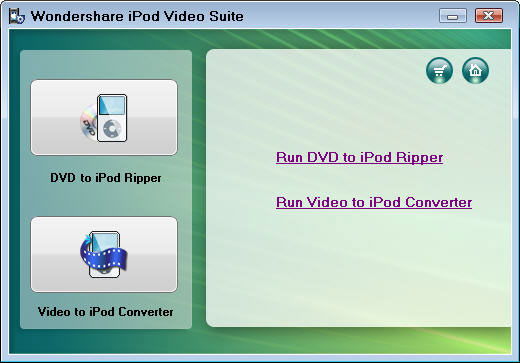
Step2. Import/Rip DVD files
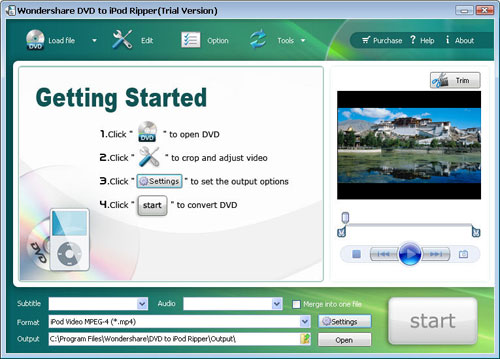
1) Load DVD folder: Click the Load DVD Folder button (or click the Import button (or click the Import button  and select Open DVD Folder), open the DVD folder on your hard disc, select the VIDEO_TS folder and click OK. and select Open DVD Folder), open the DVD folder on your hard disc, select the VIDEO_TS folder and click OK.
2) Load DVD Rom: Make sure that you have inserted a DVD into your DVD ROM. Click the Import button , select Load DVD Rom, locate your DVD ROM and click OK.
3) Load IFO File: Click the Import button , select Load IFO file, located your DVD folder, open the VIDEO_TS folde, select all the IFO file in the VIDEO_TS folder and click OK.
Step3. Subtitle, Audio, output directory setting
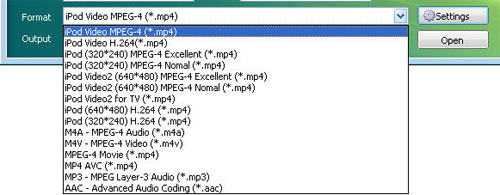
DVD provides multi languages Subtitle. You can click the drop-down menu to select anyone you want. Select ‘Audio’ is the same. To 'Save as', enter the full pathname or select the path where you want to save your video files by clicking the icon in the right side.
Step4.Click the ‘START’ button to begin the conversion.
Related Step by Step Guides and Tutorials:
How to convert DVD to PSP MP4 step by step?
How to convert MSN Music to MP3 step by step?
How to convert Napster protected music to MP3, iPod step by step?
How to convert Rhapsody Music to MP3 step by step?
How to convert and burn VOB AVI to DVD step by step?
How to split MPEG, MPG, SVCD, DVD, VCD with Quick MPEG Splitter step by step?
How to copy DVD and play on PSP step by step?
How to copy DVD movies with dvdSanta step by step?
How to play DVD movie on my PC step by step?
How to rip DVD and put DVD on Zune step by step?
|

 RSS Feeds
BBS Forum
RSS Feeds
BBS Forum