How to copy DVD9 to DVD5/DVD9, burn DVD9 to DVD5/DVD9 step by step? How to copy DVD9 to DVD5/DVD9, burn DVD9 to DVD5/DVD9 step by step?
This step-by-step guide will show you how to copy DVD9 to DVD5/DVD9, burn DVD9 to DVD5/DVD9 with DVD Clone Studio. The detailed steps are as follows:
Step1. Please download DVD Clone Studio and install it; you can know more about it by visiting here: http://www.qweas.com/download/video_dvd/dvd_backup/dvd_clone_studio.htm
Step2. Insert the DVD movie disc (DVD9 or DVD5) you want to copy to your drive, run DVD Clone Studio. The software will automatically detect the DVD movie location.
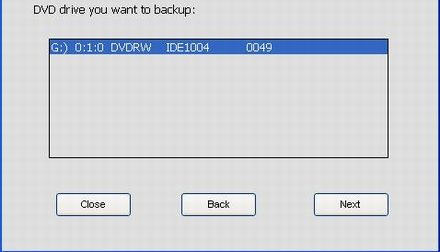
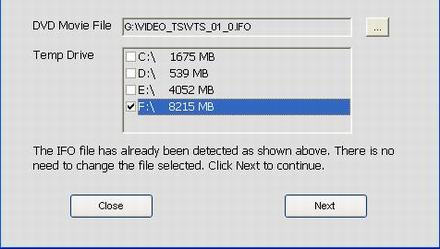
Step3. Click on the Next button to enter the next window. The IFO file has been detected correctly.
Tips: the IFO file provides information for DVD player where DVD-Video disc's chapters' start, where certain audio tracks are located, etc. Then select a temp drive in "Temp Drive" list. DVD Clone Studio can recognize free spaces of all drives on your computer. In general, we select a drive of large free space, so I check out the latest option.
Step4. Click the Next button to go on. In the window, you can select all .vob files to backup or only select one to copy. As an example, I select the first file to copy.
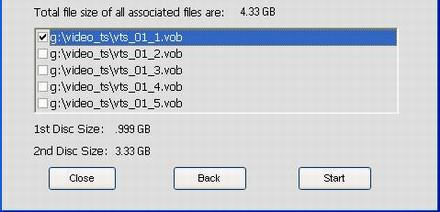
Tips: All DVD movies are stored in on a DVD video disc in so-called VOB files. VOB files usually contain multiplexed Dolby Digital audio and MPEG-2 video. VOB files on a DVD are numbered as follows: vts_XX_y.vob where XX represents the title and Y the part of the title. There can be 99 titles and 10 parts, although vts_XX_0.vob does not contain any video, usually just menu or navigational information.
Step5. If you are satisfied with the settings above, just click on the Start button to start encoding.
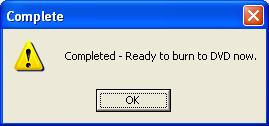
Step6. Now encoding work has been completed, click on the "OK" button, insert a blank DVD disc (DVD9 or DVD5), and start burning. The burning speed mainly depends on your DVD Burner.
Related Software Step by Step Guides
and Tutorials:
How to to burn files and folders to CD and DVD on-the-fly?
How to burn IMG to DVD with IMG to DVD burner?
How to burn Tivo videos to DVD with Tivo to DVD burner
How to convert DVD to PSP MP4 step by step?
How to copy DVD movies with dvdSanta step by step?
How to rip DVD and put DVD on Zune step by step?
How to convert flash to mpeg and burn Flash files to DVD, VCD and SVCD?
How to convert DVD to iPod video, transfer iPod video to iPod?
|
|
|

 RSS Feeds
BBS Forum
RSS Feeds
BBS Forum