How to convert DVD to YouTube Video step by step? How to convert DVD to YouTube Video step by step?
The page will show you how to convert DVD to YouTube Video step by step with iSofter DVD to YouTube Converter. The detailed steps are as follows:
Step1. Please download iSofter DVD to YouTube Converter, install and run it; you can know more about it by visiting here: http://www.qweas.com/download/video_dvd/dvd_rippers/isofter_dvd_to_youtube_converter.htm
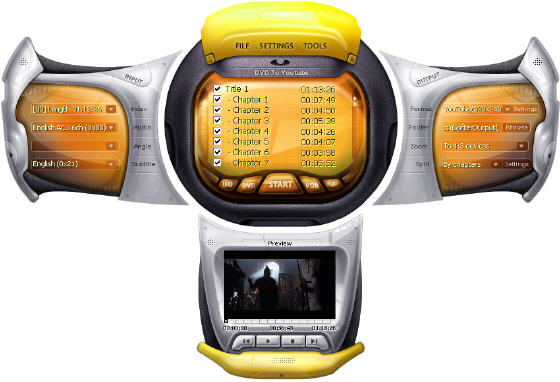
Step2. Insert DVD to DVD-ROM Click "Open DVD" button on the dialog box, After click open dvd button, Chapters will be showed in Chapter list window.
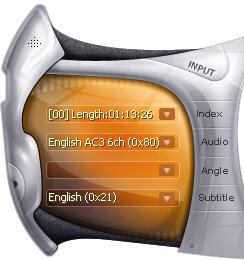
Step3. You can select the audio track for the target files in the "Audio" combo-box in the Input area. Also, you can select the "Subtitle" language or "without Subtitle".
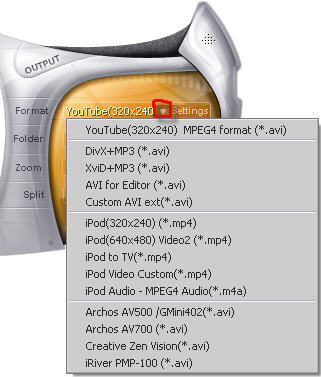
Step4. Select "YouTube(320*240) MPEG4 format" in the "output format" dropdown list in the format area. And you can set the output folder and file size. To set file size, you can choose "custom" in Volume dropdown list then click "settings" button.
Step5. With all settings being properly done, click "Start" button, choose "Encode" to convert DVD movie to Youtube.

YouTube
Youtube.com has become the most popular online video site. People can post almost anything they like on YouTube in minutes.
YouTube accepts video files from most digital cameras and camcorders, and cell phones in the .AVI, .MOV, and .MPG file formats. The AVI (Divx, Xvid) format at 320x240 resolution with MP3 audio is recommended. So we'll rip the video clip and convert it to Xvid format with MP3 audio using iSofter DVD to YouTube Converter, which resizes your video to these specifications while conversion and your clips would look better on YouTube.
Related Software Step by Step Guides
and Tutorials:
How to prepare and upload video to YouTube?
How to convert DVD to iPhone Video MP4 step by step?
How to convert WMV MP4 3GP RMVB AVI to Youtube Video?
How to download YouTube Video, convert YouTube to PS3 Zune Apple TV iPod 3GP?
How to convert DVD to PSP MP4 step by step?
How to convert AVI MPEG MP4 to PS3 iPod FLV Apple TV Zune etc on Mac?
How to convert DVD to iPod video, transfer iPod video to iPod?
How to convert Youtube to AVI, YouTube to WMV, YouTube to MP4?
How to convert MP4 to PSP with Mooma Video to PSP Converter?
How to rip DVD and put DVD on Zune step by step?
|

 RSS Feeds
BBS Forum
RSS Feeds
BBS Forum