How to recover fdisked drives? How to recover fdisked drives?
Data Recovery Wizard is the reliable data recovery
utility that provides you with powerful undelete, data recovery and disk
restoration functionality.View and restore deleted files and folders;
recover data from formatted, reformatted, corrupted and damaged NTFS and
FAT hard drives and partitions.
Step1. Download
EaseUs DataRecoveryWizard from http://www.qweas.com/download/system/data_recovery/easeus_datarecoverywizard.htm
and install it on your PC.
Step2.Click the "AdvancedRecovery" button on the main window of
Data Recovery Wizard.
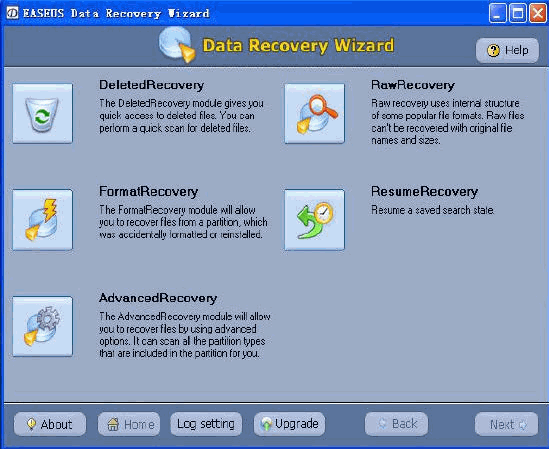
Step3.You can see the list of all physical device(s) and logical volumes found on your computer.
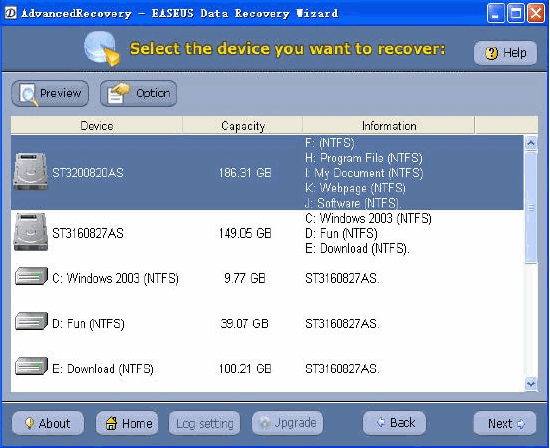
Step4. Select the physical disk that contains the corrupt or missing logical drive and click the "Next" button to run partition recovery.
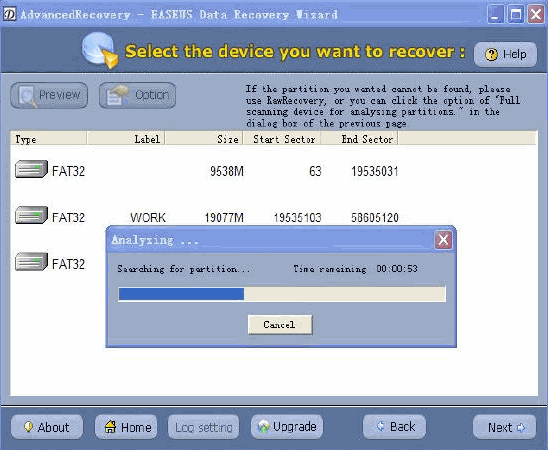
Step5. Data Recovery Wizard would scan the hard disk for all the lost partitions and would present the list of found partitions.
Step6.Select the corrupt or missing logical drive from the list and click "Next" to begin scanning for files.
Step7.Data Recovery Wizard analyses the drive data structures and file system attributes and displays the directory tree. After this scanning is finished, you'll see file/folder tree.
Step8.Select the file or directory that you want to recover and press the "Next" button.
Step9.Select a directory and press the "Next" button to save the data.
Note: If no lost or missing logical drives are found, please click "OPTION" button on device list window, then a dialog window will appear, please click "Full scanning device for analyzing partitions" radio box and press "OK" button.
Related
Software Step by Step Guides and Tutorials:
How to recover Data from USB Flash Drive?
How to recover Deleted or lost photos, images and pictures?
How to recover Deleted PST, WAB, PAB, DBX, Hotmail, Yahoo Email?
How to recover Deleted Files and Folders?
How to recover files from Raw Hard Drive?
How to recover hard disks involving Scandisk and Chkdsk error?
How to recover Encrypted file on NTFS Drive?
How to recover Compressed files on NTFS Drive?
How to recover data from damaged or formatted disks?
How to recover files from dynamic-disk in Windows?
|

 RSS Feeds
BBS Forum
RSS Feeds
BBS Forum