How to recover Deleted Files and Folders? How to recover Deleted Files and Folders?
Data Recovery Wizard is the reliable data recovery
utility that provides you with powerful undelete, data recovery and disk
restoration functionality.View and restore deleted files and folders;
recover data from formatted, reformatted, corrupted and damaged NTFS and
FAT hard drives and partitions.
Step1. Download
EaseUs DataRecoveryWizard from http://www.qweas.com/download/system/data_recovery/easeus_datarecoverywizard.htm
and install it on your PC.
Step2. Click the "DeletedRecovery" button on the main window of Data Recovery Wizard.
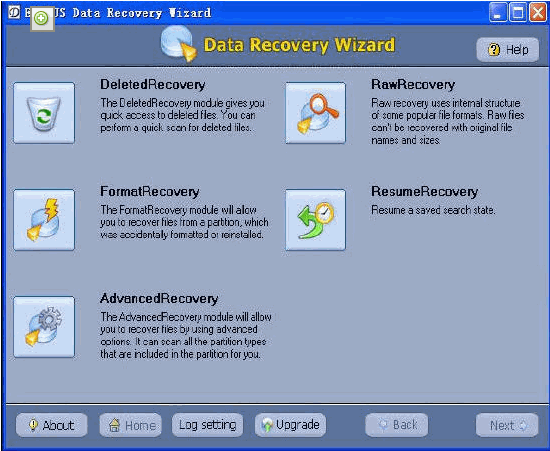
You can see the list of all logical volumes found on your computer.
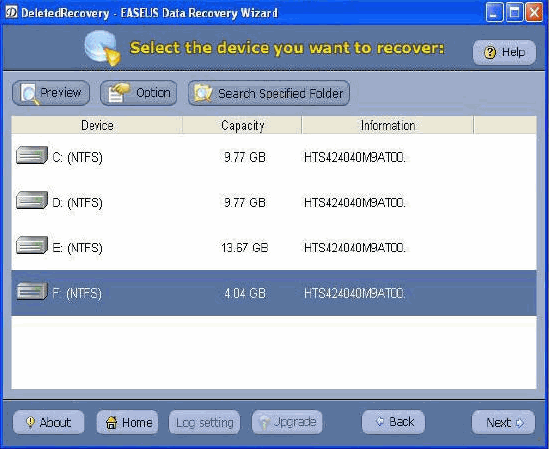
Step3. Press the "Next" button
You can select the exact drive or click "Search Specified Folder", press the "Next" button to search. If you are familiar with file system details, you can change "OPTION" before pressing the "Next" button.
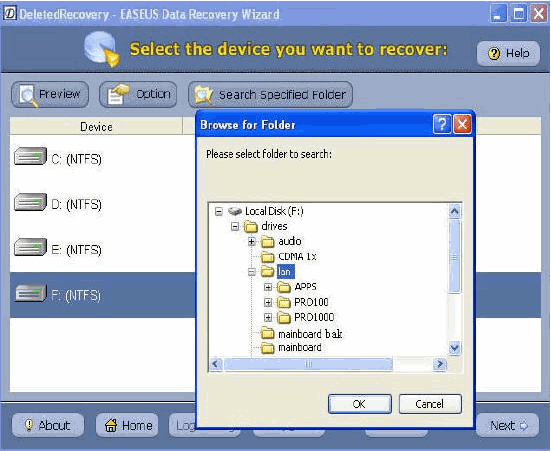
Data Recovery Wizard will read file system on selected volume.This step
may take some time depending on the size of disk space.
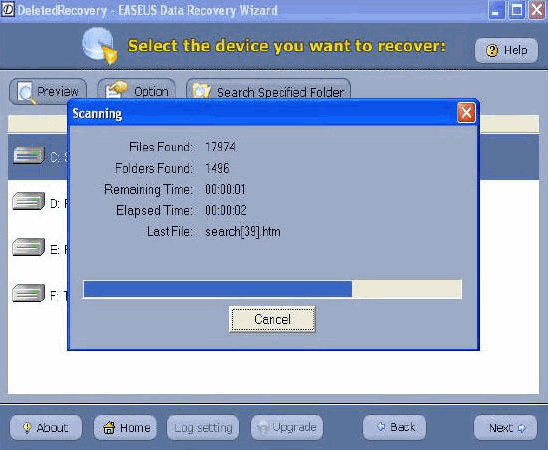
You have to wait until scanning is finished.Otherwise Data Recovery Wizard
may not be able to find and recover lost Excel files.After this scanning
is finished, you'll see file/folder tree.
Step4.preview the excel file
You can "Search" or "Filter" files, or only show deleted and lost file
with "Deleted and Lost Files" button.
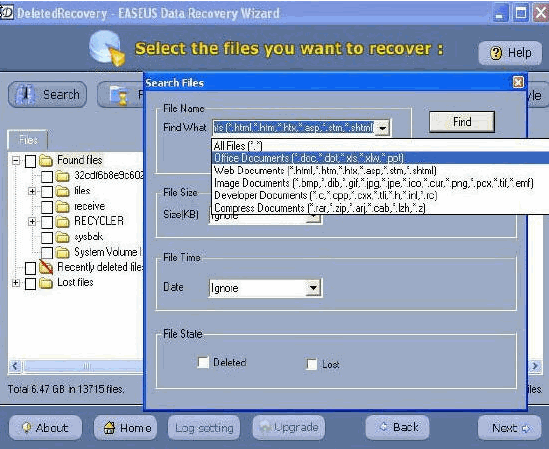
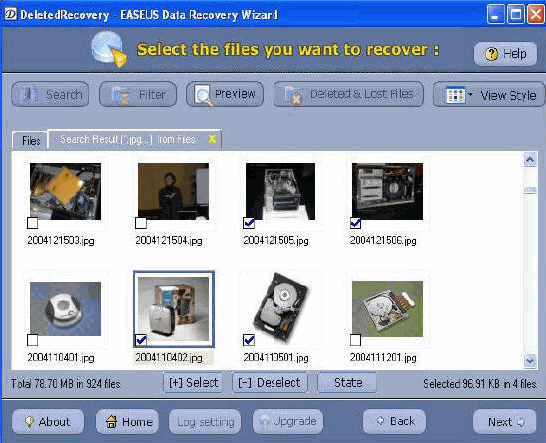
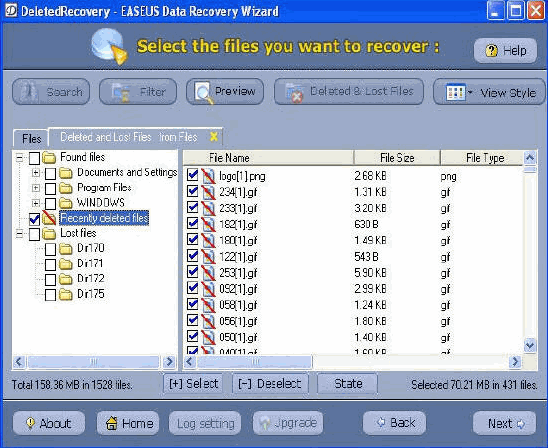
Step5.Select the file or folder
Select the file or folder that you want to recover and press the "Next"
button.
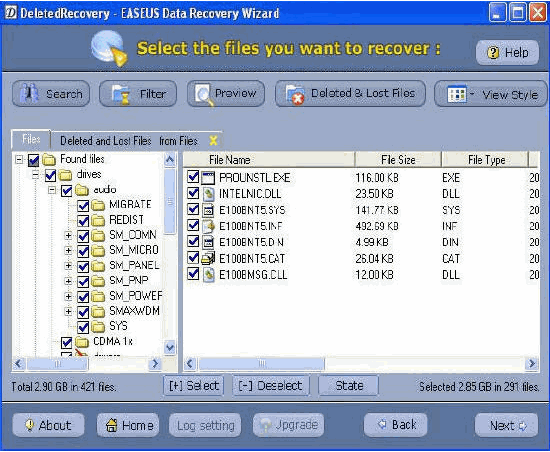
Step6.Select a directory and press the "Next" button to save the
files.
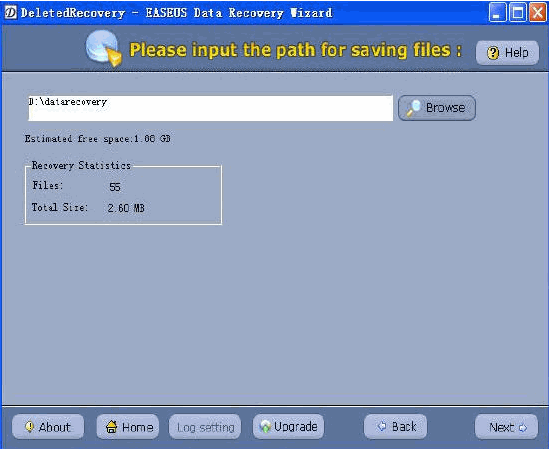
Step7.Saving is complete.
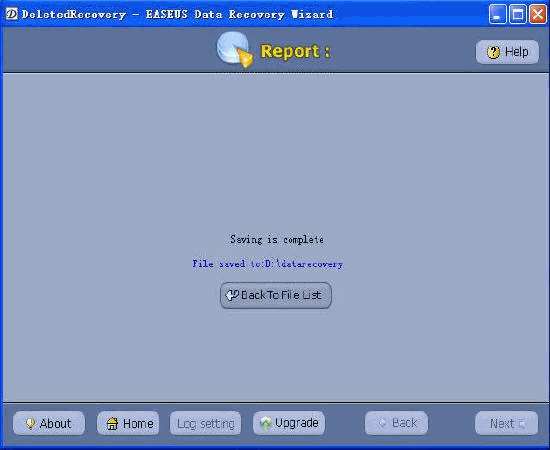
Note: If after DeletedRecovery you are not able to get the desired results, go back to home window and select the option "AdvancedRecovery".
Related
Software Step by Step Guides and Tutorials:
How to recover Outlook Express Emails with DBX files recovery software?
How to recover NTFS files with NTFS data recovery software?
How to recover deleted and emptied trash bin files on Mac OS X?
how to recover contact information from the Windows Address Book?
How to recover corrupted Zip files with Zip repair tool?
How to recover deleted or lost photos, images and pictures?
How to recover Deleted PST, WAB, PAB, DBX, Hotmail, Yahoo Email?
How to recover files from formatted hard drives?
How to recover lost files from re-partitioned hard drives?
|

 RSS Feeds
BBS Forum
RSS Feeds
BBS Forum